 Diaper Days
Start with what you want to know.
You might need the end of the last nap for a handoff, or want to know whether bedtime has been moving later. Choose a question you want to answer, then keep the details that help.
Start and end times give you a picture of both sleep and the time in between. A short note can explain a nap in the car, a different routine at daycare or a time you only know approximately.
Look at several days together. If one day seems unusual, check whether an entry is missing or something was different before treating it as a change in routine. Agree with your caregivers about where to keep the record so everyone can find the last nap.
Record the nap while it’s fresh.
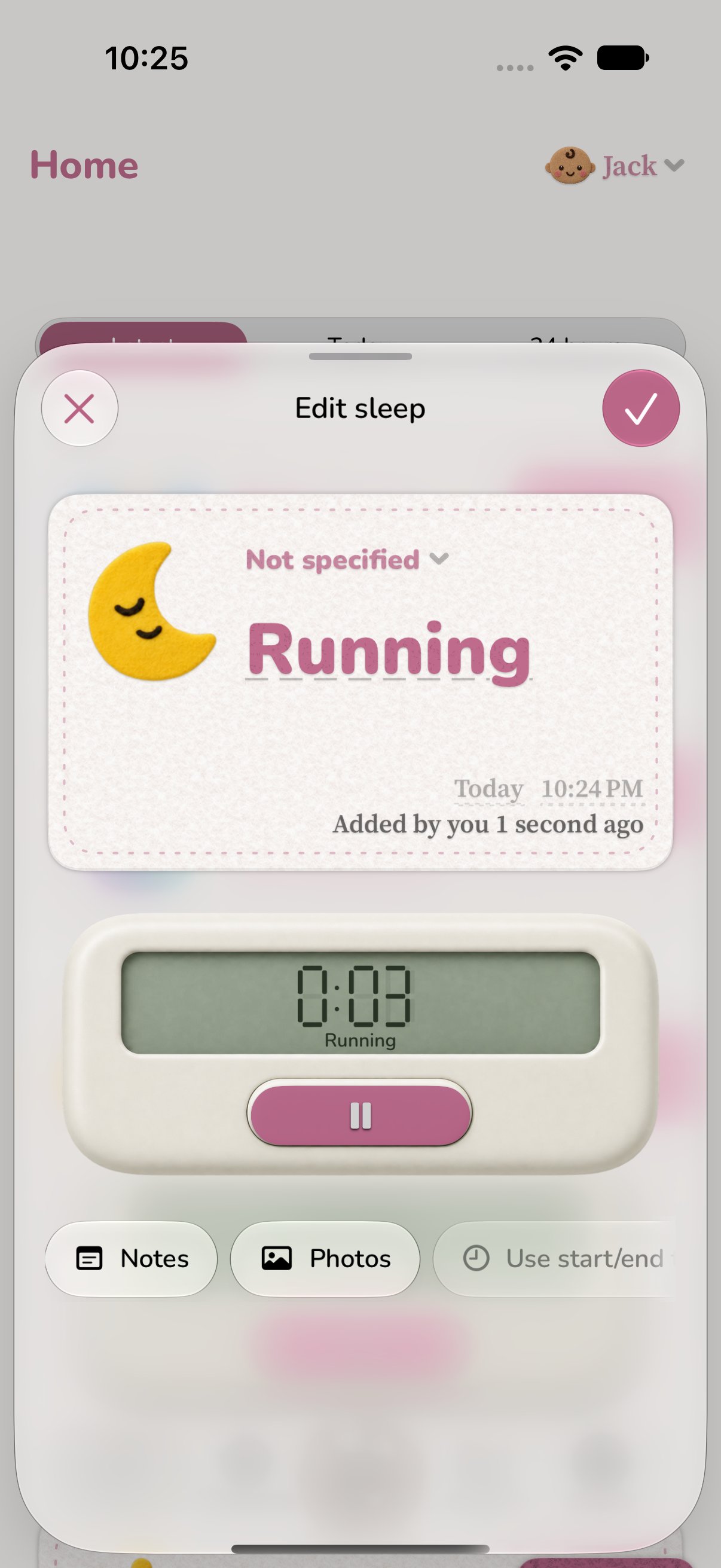
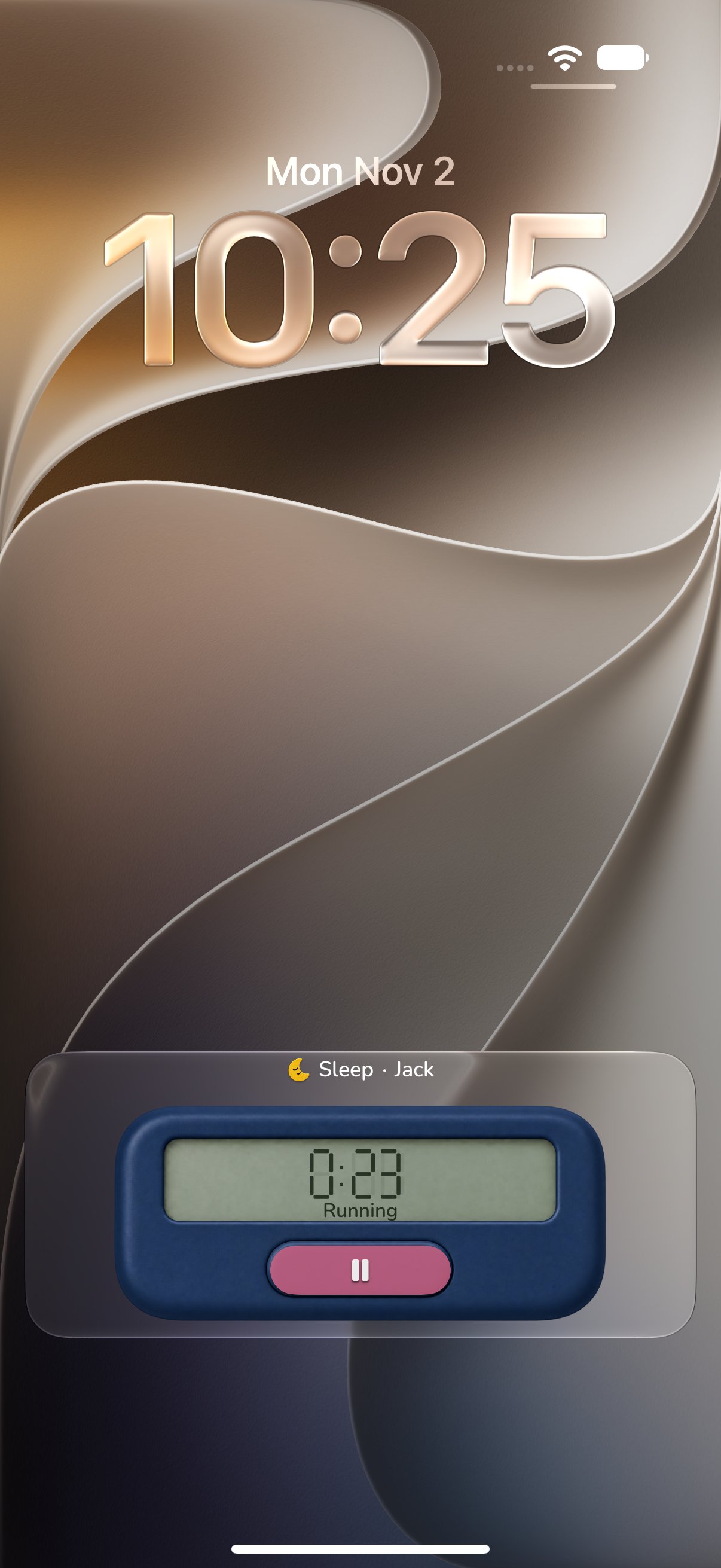
Start a Sleep timer when your baby falls asleep and stop it when they wake. If you already know the times, add a completed Sleep event afterward. Add a note when there’s something the next caregiver should know.
You can fill in a missed event or correct a time later. Record what you know and leave any uncertainty in a note, so an estimate doesn’t become a detail you mistake for an exact time.
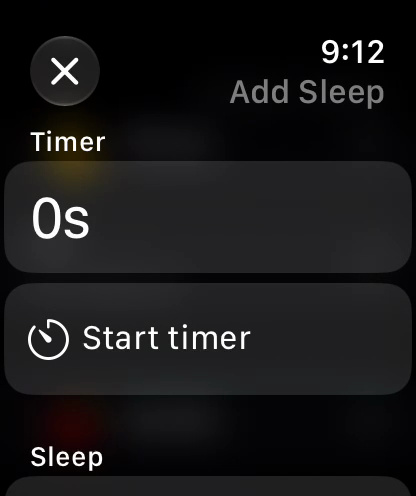
Start the next nap from your Apple Watch. Follow a running timer with Live Activities, without reopening Diaper Days.

Earlier sleep records can stay part of the picture. Bring a supported Nara CSV or Huckleberry CSV into Diaper Days for free.
Have the times in a photo?
With Diaper Days+, turn a picture of care notes or a screenshot into proposed events. You can ask AI to help correct a batch, too. Check the times and details before adding them to your child’s history.
Look for the routine across their days.
Once you have a few days recorded, choose one question to explore. A longer night, a shorter afternoon nap or a later bedtime may be easier to see when the days sit beside each other.
Diaper Days brings your saved sleep into charts. Use the same dates when comparing naps and nights, then look back at the individual events when a day catches your attention.
To see when sleep happens, open Calendar in History. Filter to Sleep to scan naps and nights across the week, or include feeds to see how the recorded events fit together. Open an event when you want its time or note.
Find your sleep record
Open Insights for your child and choose Sleep. A week is a useful place to start. To separate daytime and nighttime sleep, set your child’s nighttime hours in Settings.
Is more sleep happening at night?
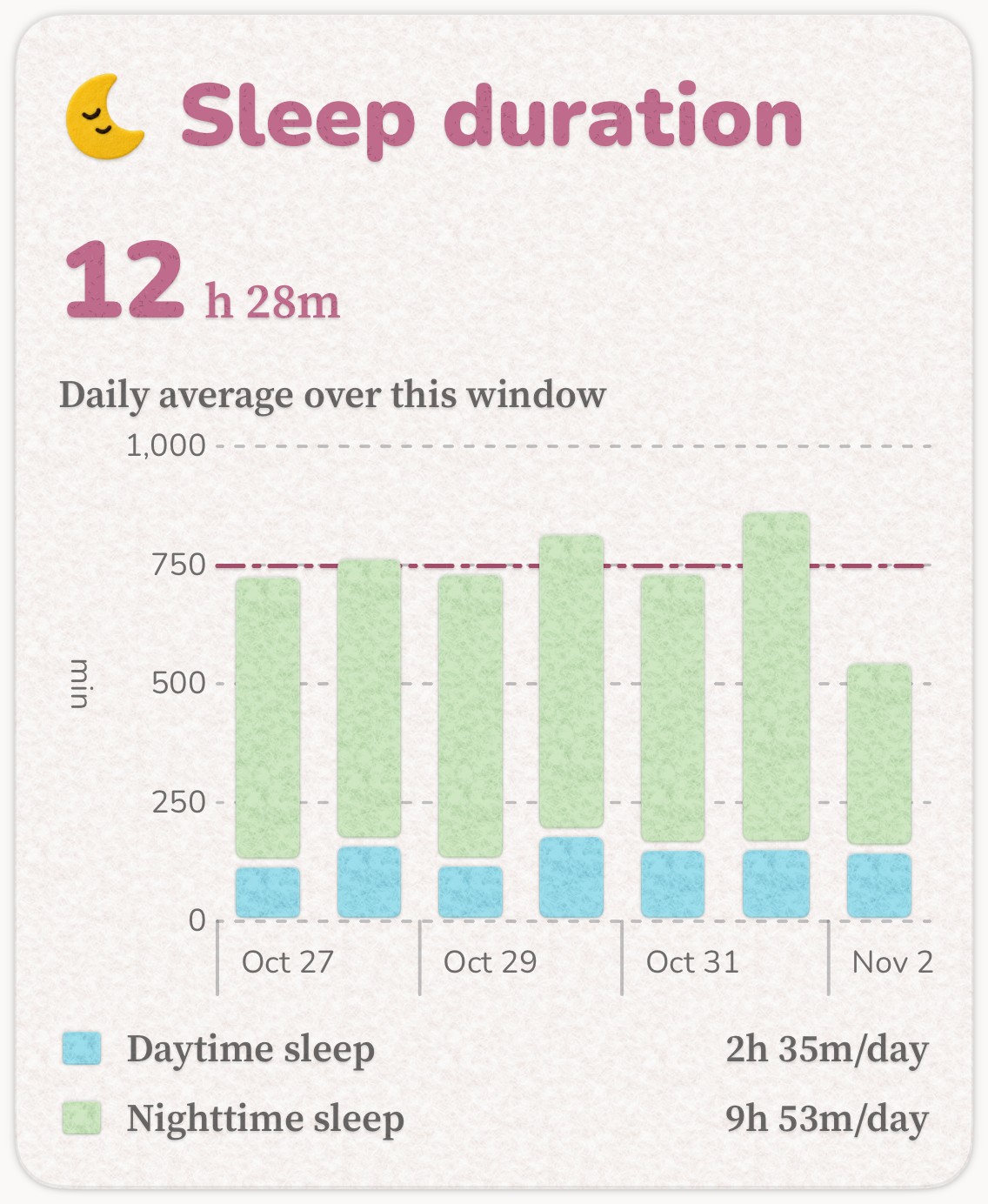
Look at daytime and nighttime sleep together. A day with less nap time might also have a longer night, or there may be less recorded sleep overall.
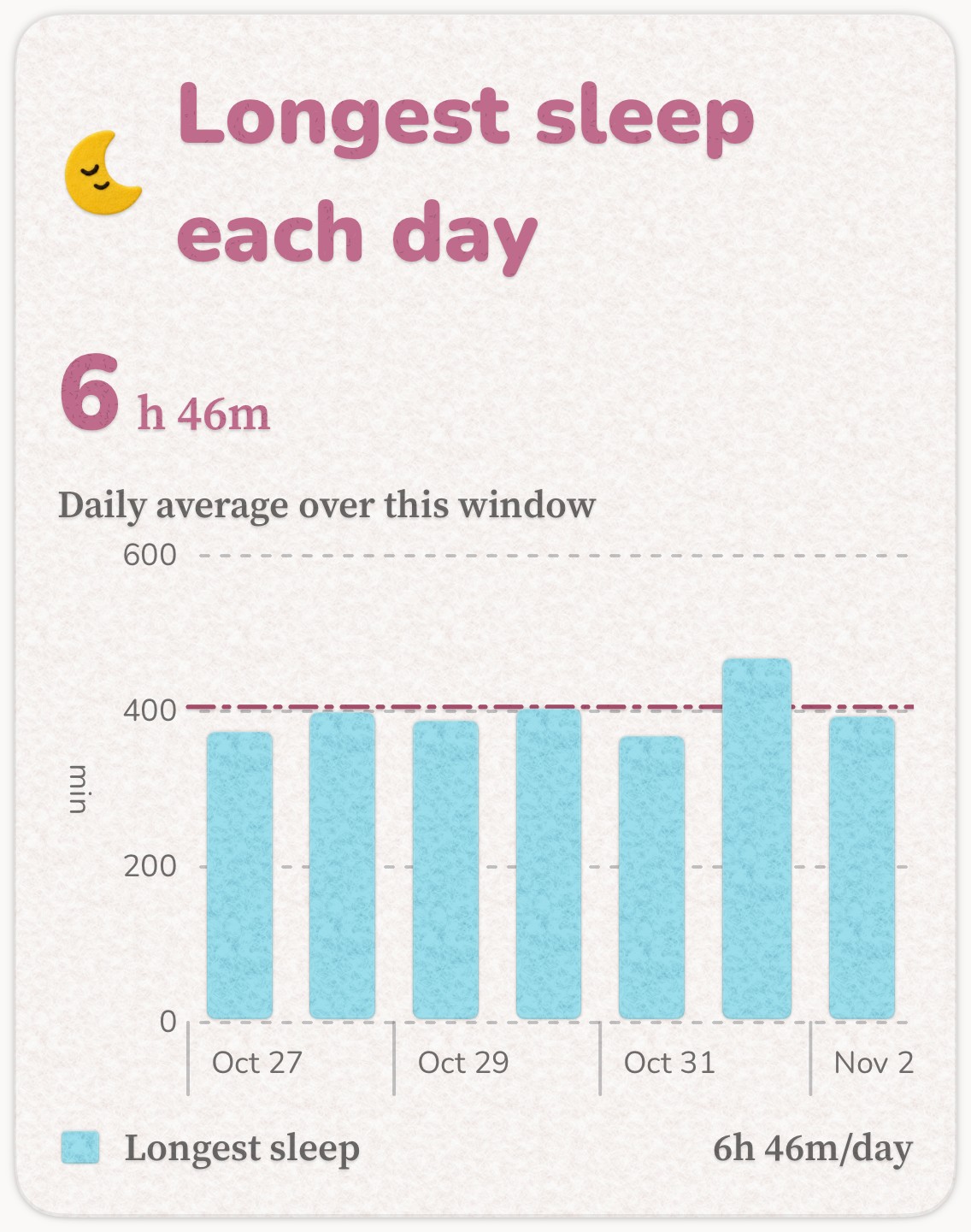
In Diaper Days, the two colors in Sleep duration show that balance for each day. Longest sleep each day helps you see whether the longest recorded stretch is changing.
Compare those days with the times in History. The record can show what happened; it doesn’t tell you why a night was different.
Are naps changing?
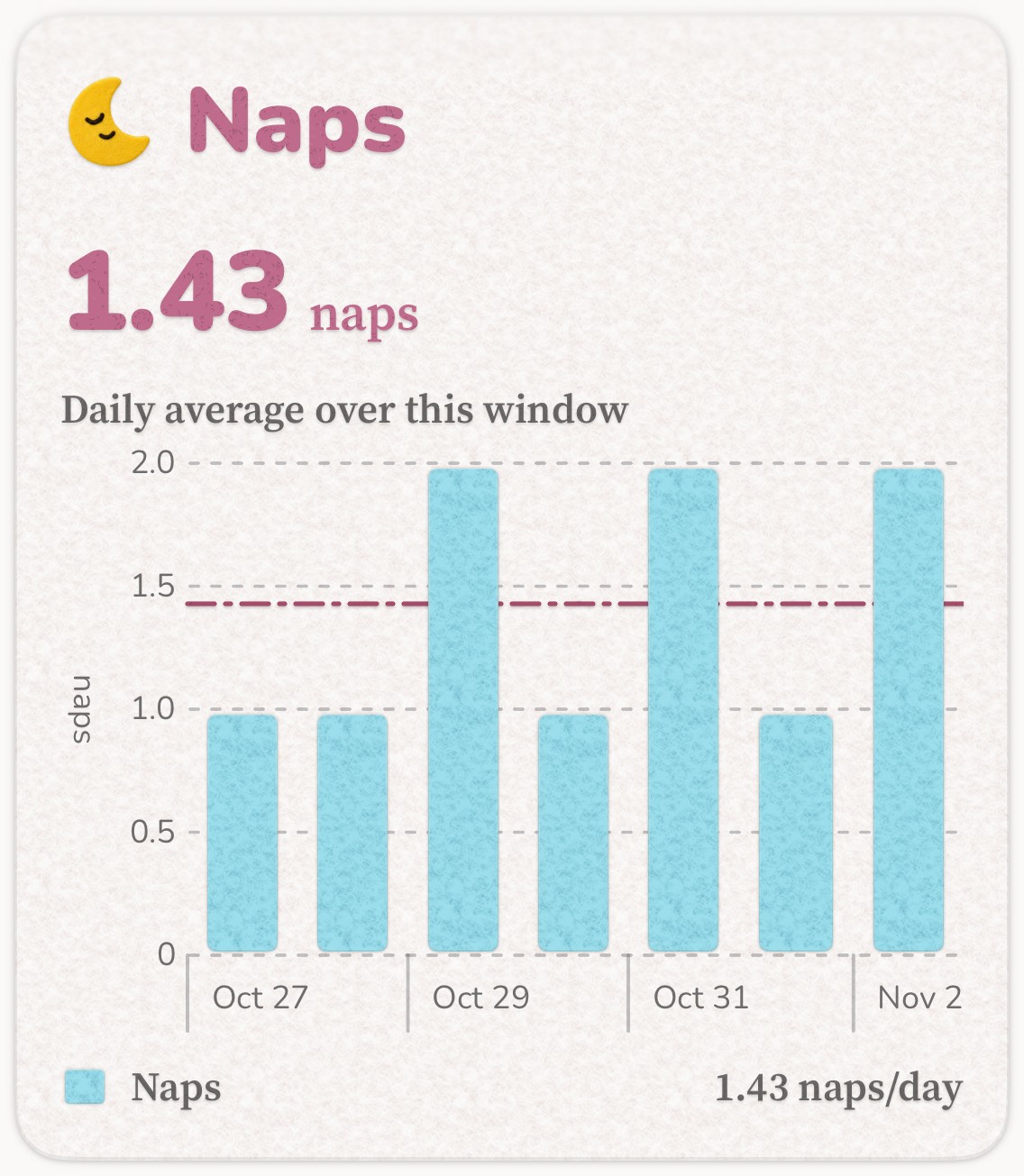
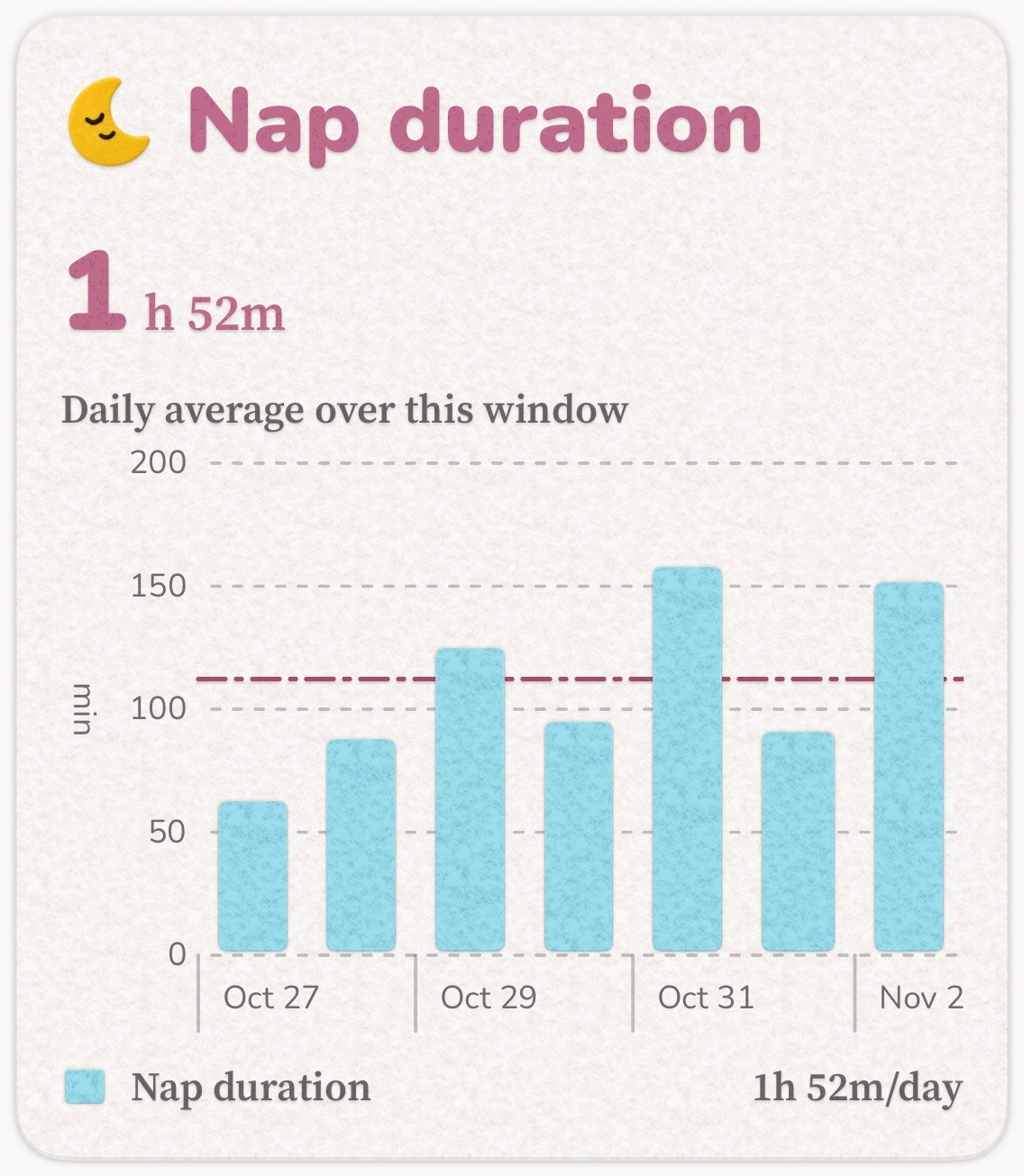
Fewer naps and less daytime sleep are different changes. Look at how often your baby napped alongside how long those naps lasted.
Diaper Days keeps nap counts and recorded nap time together. If a day looks different, open its events to check whether a nap lasted longer, happened later or wasn’t recorded.
How long are they awake between sleeps?
Look back at the end of one sleep and the start of the next. Are those gaps similar across a few days? Do they look different after a short nap or on a daycare day?
Diaper Days shows these recorded gaps as Wake windows. Use them alongside your notes and the individual sleep times to describe your baby’s routine across the day.