 Diaper Days
Save a copy before you switch.
A care history is useful when the next caregiver asks about a feed, when you want to look back over a week of naps, or when you’re checking a detail from an earlier day. Exporting it gives you a copy to keep while you try a new app.
Choose a time to switch where everyone knows which app to use for new entries. Keep the original export until you’ve checked the imported days, amounts and times. For more than one child, keep each child’s files clearly named.
Still choosing your next tracker?
Diaper Days is ad-free, and both everyday tracking and supported CSV imports are free. Our Nara vs Diaper Days comparison covers prices, caregiver access and optional tools. The steps below focus on moving the history you already have.
Export the CSV from Nara.
In Nara, open the Activity screen and tap the avatar beside your child’s name. Tap Export Data and save the CSV. Nara keeps export available even after the trial ends.
Nara’s official export instructions cover the current path.
Bring the file into Diaper Days.
Open your child’s Settings. Under Profile data, choose Import care history. Continue past the introduction, tap Choose a file and select your Nara CSV, then tap Continue.
On Whose events are these?, choose the child for the events in the file. Check the time zone and any missing volume units shown, then tap Continue.
Check any new options.
The next screen shows new activity options found in the file. Review their details, match them to an existing option where appropriate, or skip an option you don’t want to bring over. Tap Continue to review the events.
Review the proposed events.
On Review events, open a proposed event to check its child, time and details. Edit anything that needs correcting. Use the filters to look through the batch. Needs review and Duplicates appear when the batch has flagged details or possible repeats to check.
Skip an event to leave it out, or remove a proposal you don’t want. Check the decisions shown for possible duplicates before adding the batch.
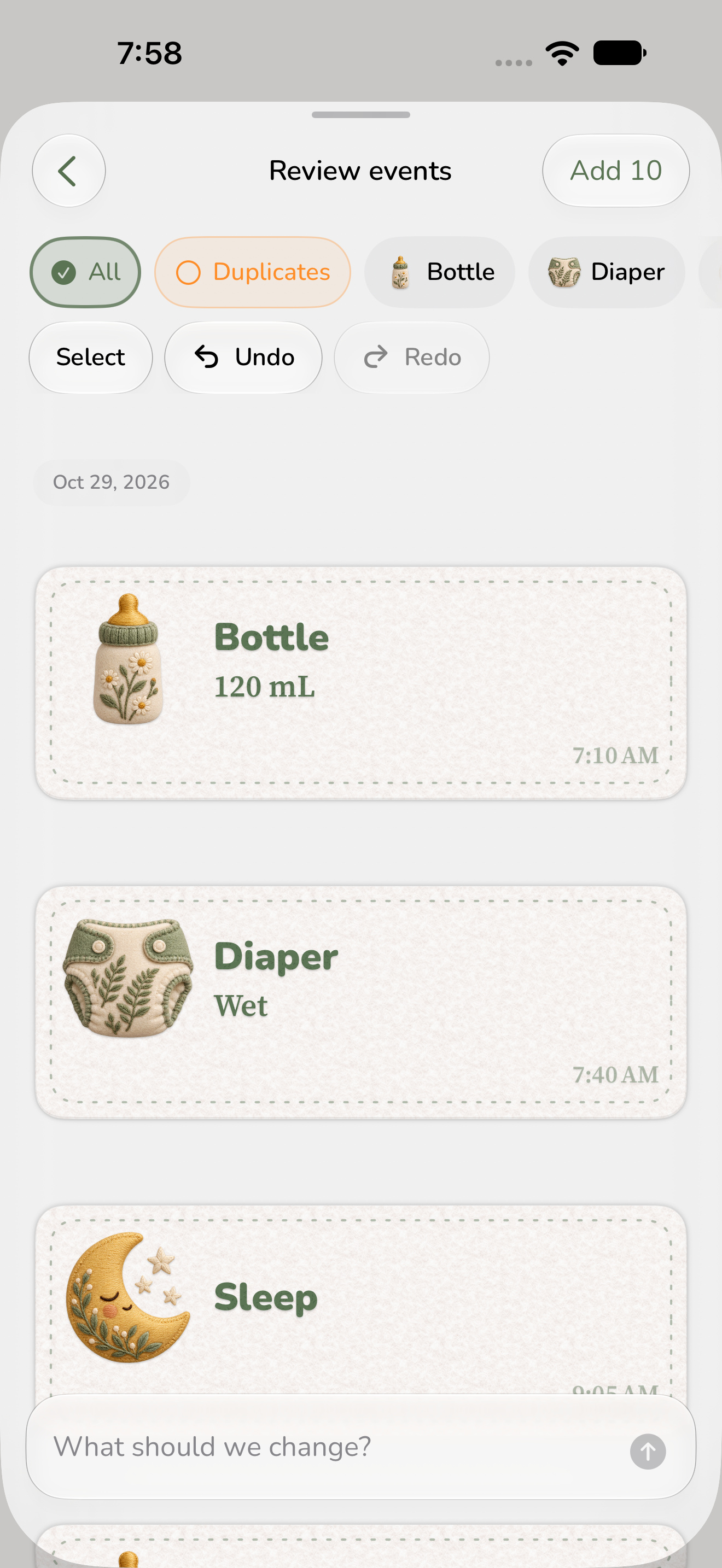

Check times, amounts and possible duplicates
Compare a few entries with your original history, including a day with overnight sleep and a feed with a recorded amount. Open flagged details and make the decision shown for each possible duplicate.
Use Skip for a proposal you want to leave out. You can return to skipped proposals while reviewing the batch.
Add the events you’ve checked.
When the proposed events and decisions look right, tap Add followed by the number of events at the top of Review events. Wait for the result, then tap Done. Open History and check a few imported days alongside your original record.
To bring your caregivers into the same profile, open Settings, go to iCloud and choose Manage sharing. Agree where to log new care events so your next handoff starts with the same record.