 Diaper Days
Start with the whole page
Check the child’s name, date and headings before reading individual rows. Make sure the photograph includes the edges of the sheet and any note explaining units. If there is another side, keep that with the first.
A clear photo helps you return to the original words. Take it in even light, with the page flat enough to read and no fingers covering the entries. Before using an AI import tool, check whether the picture includes another child’s name or details you do not need to send.
Keep any questions together for the caregiver who wrote the sheet. A number without a unit, a crossed-out time or an unexplained tick can need a human answer even when the photograph is sharp.
Check times and amounts before filling a gap
Consider a sheet dated October 12 with “10:15 bottle 90” and “sleep 12:20–1:05.” The bottle row leaves the unit unclear. The sleep row needs its morning or afternoon context. A familiar-looking entry from yesterday cannot confirm either detail.
Ask the caregiver about what you cannot tell from the page. A crossed-out row may be a correction; a tick may mean someone checked an entry. Keep uncertainty in a note until it is resolved, rather than making the history look more exact than the source.
Check which events are already in the family log. Compare the child, date, activity, time and details. You may have recorded the same bottle from a message earlier, while two nearby bottle rows may describe separate feeds.
Turn a photo into events you can review
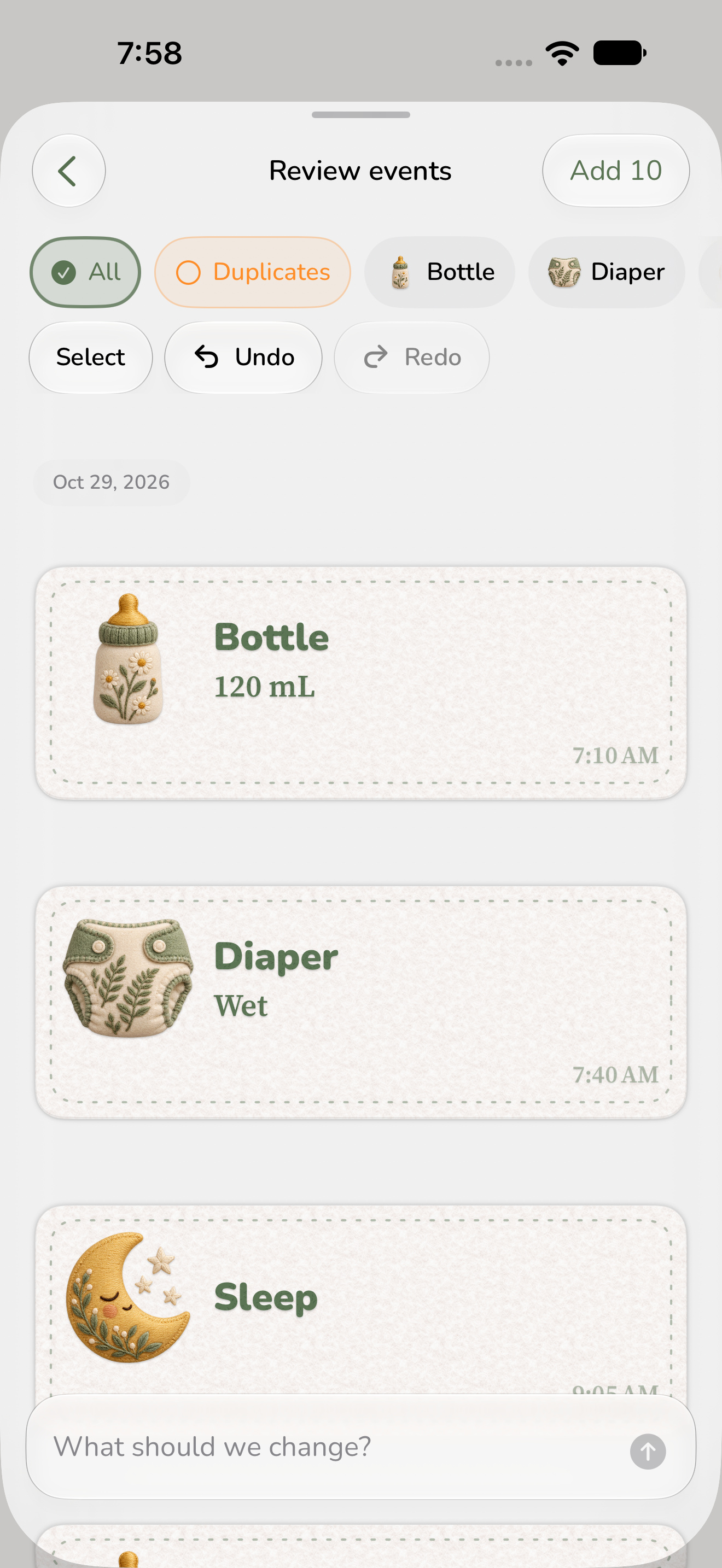
With Diaper Days+, you can use a photo of handwritten notes, a daycare sheet or a screenshot to create proposed care events. The proposals give you a place to check and correct the details before adding them to your child’s history.
Compare each proposed event with the original. Check the date and time as well as the activity, amount and unit. Open an event when a detail needs changing, and leave out proposals you do not want to add.
AI photo import uses external processing. Selected photos and relevant context go through Platypen to OpenAI. Read the explanation in the app before continuing, and see the Privacy Policy for how this differs from everyday care recording.

Explain corrections that apply to several entries
Some corrections affect a whole group. If a caregiver confirms that every afternoon feed on the sheet was written ten minutes early, describe that correction to the AI while reviewing the proposed events in Diaper Days.
Be specific about which events you mean. “Move the afternoon bottle events ten minutes later” is easier to check than “fix the times.” Review the updated proposals against the source and the caregiver’s explanation before adding them.
You can still make manual edits. Asking AI to change the batch saves repeated work only when you can verify that it applied the correction you intended.
Keep the source until the history makes sense
After adding the events you have checked, look at that day in History. Make sure the daytime care fits alongside the entries already there. Keep the original sheet until any remaining questions are answered.
For future sheets, agree what to record with the caregiver. Clear dates, units and start and end times make the next review easier, whichever tool you use to keep the family history.
Use an export when you are moving an earlier history
A photo import covers the record in that picture. If you are moving an existing tracker’s history, the Nara and Huckleberry guides cover the supported CSV routes. Those imports and everyday care tracking are free; AI photo import and review are optional with Diaper Days+.