 Diaper Days
Choose what you want to recognize
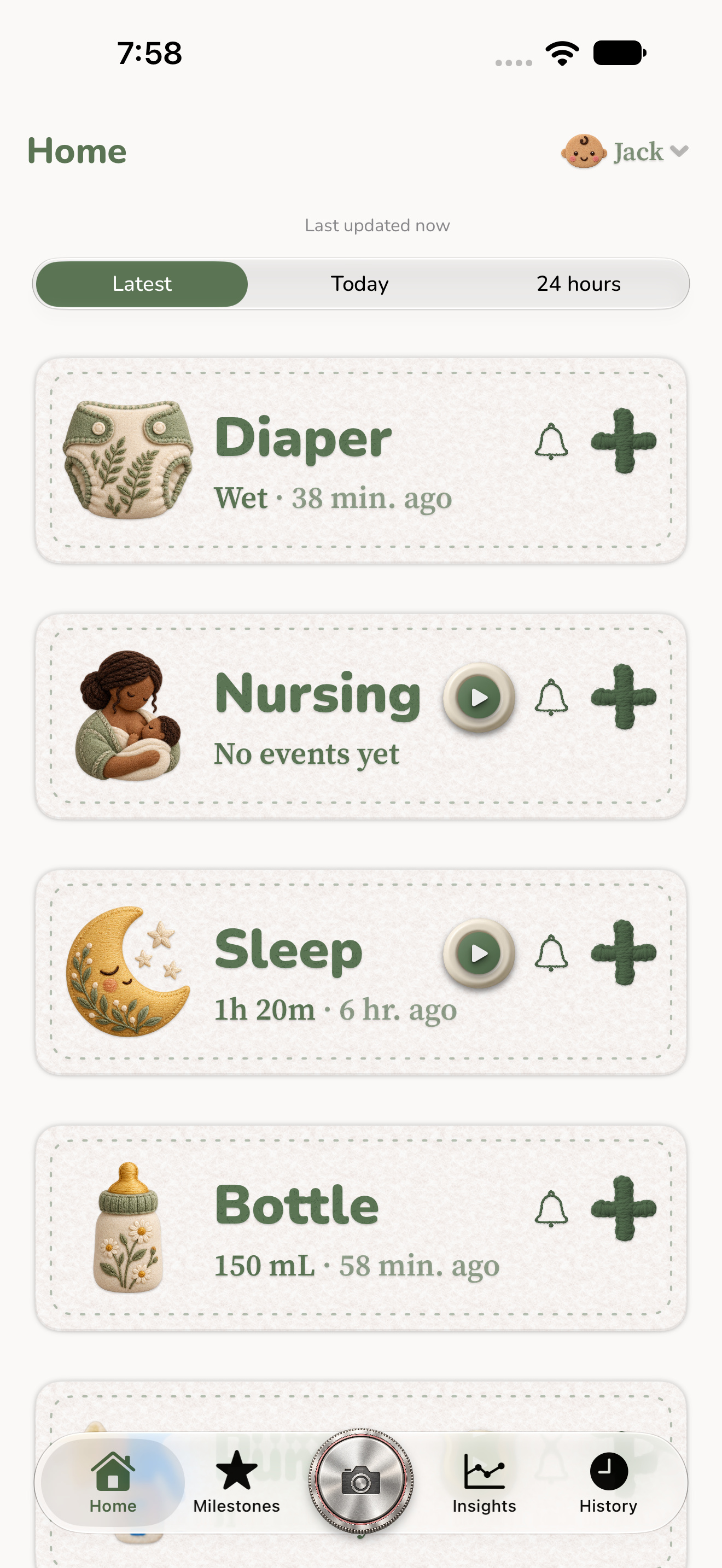
A theme gives Diaper Days a coordinated look, with an accent color and a set of icons. Pick a theme if you want the whole app to feel familiar, the way a favorite notebook does.
Make a single icon when one activity or item needs a clearer cue. A blue wagon could mark your evening walk. A yellow duck makes a bath easy to pick out. Start with the part of the day you find yourself looking for.
Describe the material, shape and color
Try “Soft felt, rounded shapes and cream stitching” for a theme. Choose a sage accent to go with it. For an individual icon, try “A blue wagon with two big wheels and a simple outline” or “A bright yellow rubber duck with an orange beak.” One clear shape helps when the icon is small.
Look at the preview alongside the activities you use most. Keep the artwork if the icons are easy to tell apart and you like how they look together.
Preview the artwork in Diaper Days
With Diaper Days+, open Settings → Appearance → Theme, then choose Create new theme. Name it, choose an accent and describe the artwork you want. Generate a preview and save it if it fits.
For one icon, open a supported activity or item. Choose Edit icon where it appears, or use the icon prompt in the item editor. Generate a preview before saving. Creating and recording custom activities is free. Generating their artwork is optional with Diaper Days+.

Your artwork follows your account
Saved themes and icons sync through your private iCloud appearance library. Other caregivers still see the same shared care events and activity names, with their own appearance settings. Unfinished artwork stays on the device where you started it.
Artwork requests send your instructions and relevant details, such as a custom item name, through Platypen to OpenAI. Usage allowances apply. If your Diaper Days+ subscription expires, your saved artwork stays in your library and the app returns to its built-in appearance until you renew. Your care history remains available.